

 Lets Talk
A website QA checklist is a structured set of checks used to verify that a website works correctly before and after launch. It should cover requirements, user journeys, forms, responsive design, browser compatibility, accessibility, performance, security, SEO, analytics, integrations, and production readiness.
Use this checklist to capture evidence, report defects, retest fixes, and make a release decision based on risk.
TL;DR
- Define supported browsers, devices, user roles, integrations, and acceptance criteria before testing.
- Test high-risk journeys first, including registration, login, search, checkout, payments, forms, and account management.
- Combine automated checks with manual exploratory, usability, accessibility, and device testing.
- Record expected results, actual results, evidence, severity, owner, and retest status for every defect.
- Do not launch with unresolved issues affecting security, payments, data integrity, authentication, compliance, or critical user journeys.
What Is Website Quality Assurance?
Website quality assurance is the planned process used to prevent, identify, document, and resolve problems across a website. It begins with clear requirements and continues through design review, functional testing, release validation, and production monitoring.
QA improves the process used to build and release the website. Quality control evaluates whether the final output meets the agreed requirements. An effective website QA process includes both.
Website QA is broader than checking whether pages look correct. It determines whether the website:
- Meets documented business and technical requirements
- Supports important user journeys
- Works across supported browsers and devices
- Protects user and business data
- Meets accessibility requirements
- Performs reliably under expected conditions
- Can be crawled and understood by search engines
- Remains observable after release
Ready to Launch with Confidence?
Download our free Website QA Checklist to test functionality, performance, security, accessibility, SEO, and mobile responsiveness before your website goes live.
Download Checklist
Ready to Launch with Confidence?
Download our free Website QA Checklist to test functionality, performance, security, accessibility, SEO, and mobile responsiveness before your website goes live.

How Should You Prepare for Website QA?
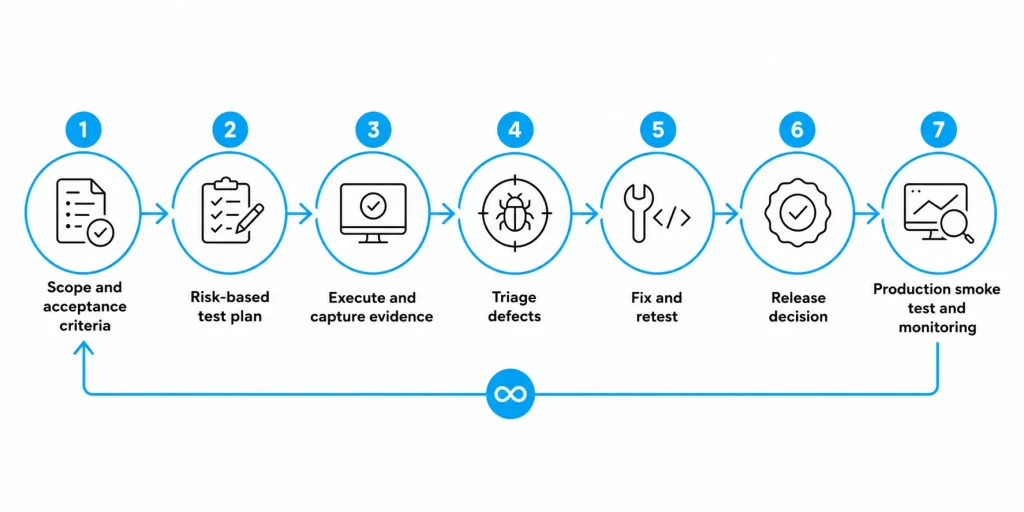
1. Define scope and acceptance criteria
List the pages, user roles, integrations, languages, supported environments, and regulatory requirements within the testing scope. Give each critical feature a measurable pass condition.
For example, “test the contact form” is vague. A better acceptance criterion is:
A valid form submission displays a success message, creates a CRM record, sends the correct notification, and appears in analytics as a conversion.
2. Map critical user journeys
Prioritize journeys that affect revenue, access, trust, or data. These may include:
- Lead form submission
- User registration
- Login and password recovery
- Product search and filtering
- Checkout and payment
- Subscription management
- File upload
- Profile updates
- Account deletion
3. Prepare realistic test data
Create valid, invalid, empty, boundary, duplicate, expired, and permission-restricted test cases.
Avoid using real customer information unless an approved and protected process requires it.
4. Build a test environment matrix
Select browser, device, viewport, connection, operating system, and user-role combinations based on analytics, contracts, and audience requirements.
Google generally recommends responsive design because it serves the same HTML at the same URL and is easier to implement and maintain.
5. Assign owners and evidence requirements
Give every checklist item:
- An owner
- Priority
- Status
- Expected result
- Actual result
- Evidence
- Defect link
- Retest result
This turns a general checklist into an auditable release record.
6. Agree on release gates
Define which defects will block launch, who can accept residual risks, and how the team will roll back the production release if something goes wrong.
Set these rules before the final test cycle.
What Should a Complete Website QA Checklist Include?
Use the following website testing checklist as a baseline. Add product-specific checks based on your CMS, integrations, workflows, industry, data, and users.
1. Scope, content, and environment
- Confirm approved requirements and acceptance criteria are available.
- Verify the test environment matches the intended release configuration.
- List supported browsers, operating systems, devices, and viewports.
- Confirm test accounts are available for every user role.
- Prepare valid, invalid, boundary, and failure-state test data.
- Check that staging is blocked from indexing.
- Confirm production pages are indexable where intended.
- Verify third-party services use the correct test or production credentials.
- Freeze or track content changes during the final regression cycle.
- Remove test users, placeholder content, and staging URLs before launch.
2. Functional testing
- Test the header, footer, menus, breadcrumbs, search, filters, and pagination.
- Check every internal, external, email, telephone, and download link.
- Verify buttons and calls to action lead to the correct destination.
- Test forms with valid, invalid, empty, duplicate, and boundary inputs.
- Confirm required fields and validation messages are clear.
- Check whether users can recover from validation errors.
- Verify form submissions reach the correct CRM, database, inbox, or workflow.
- Test registration, login, logout, password reset, and session timeout.
- Confirm users can access only the pages and actions permitted for their roles.
- Test search with exact, partial, misspelled, empty, and zero-result queries.
- Verify checkout, taxes, discounts, shipping, payments, refunds, and confirmation flows.
- Test file upload, download, preview, size limits, type limits, and failure states.
- Confirm browser back, forward, refresh, and deep links behave correctly.
- Test loading, empty, error, success, and expired states.
For complex applications, create a separate functional testing checklist for every critical end-to-end workflow.
3. UI, responsive, and compatibility testing
- Compare implemented pages with approved designs and content.
- Check typography, spacing, colors, icons, and component consistency.
- Test common mobile, tablet, laptop, and large-screen widths.
- Check portrait and landscape orientations where relevant.
- Confirm content does not overflow, overlap, clip, or create horizontal scrolling.
- Test menus, modals, forms, tables, and media on touch screens.
- Verify hover, focus, active, disabled, loading, empty, success, and error states.
- Test supported versions of Chrome, Safari, Firefox, and Edge.
- Check browser zoom and text resizing.
- Review the website on high-density displays.
- Validate critical journeys on real devices instead of relying only on emulation.
4. Accessibility and usability testing
- Navigate every critical journey using only a keyboard.
- Confirm the focus order is logical.
- Check that focus indicators remain visible.
- Verify the page has one descriptive H1.
- Check that headings follow a meaningful hierarchy.
- Confirm informative images have useful alt text.
- Use empty alt text for decorative images.
- Verify form fields have programmatic labels.
- Check that validation errors explain how to resolve the problem.
- Verify sufficient color contrast.
- Avoid using color as the only status indicator.
- Test menus, tabs, dialogs, accordions, and alerts with assistive technology.
- Confirm controls have understandable names, roles, and states.
- Review target sizes for buttons, links, and interactive controls.
- Check captions, transcripts, motion controls, and time limits where applicable.
- Review relevant requirements in the W3C WCAG 2.2 Quick Reference.
Automated accessibility tools can identify common problems, but they cannot determine whether every journey is understandable and usable. Include manual keyboard and assistive-technology testing.
5. Performance and reliability testing
- Run Lighthouse or an equivalent test on representative page templates.
- Measure real-user Core Web Vitals when field data is available.
- Test on a slower mobile connection.
- Test on a representative mid-range mobile device.
- Optimize images, fonts, scripts, and styles.
- Verify caching, compression, and lazy loading.
- Check API response times, timeouts, retries, and fallback states.
- Test expected traffic, concurrency, and rate limits where risk justifies it.
- Confirm CDN behavior and cache invalidation.
- Test redirects and error pages.
- Review monitoring for frontend errors, backend errors, availability, and failed jobs.
Lighthouse provides automated audits for performance, accessibility, SEO, and other website quality areas. Use it to support human testing, not replace it. Refer to the official Chrome Lighthouse documentation.
6. Security and privacy testing
- Enforce HTTPS and check for mixed content.
- Verify authentication, authorization, session handling, and logout behavior.
- Test server-side validation for inputs, uploads, URLs, and API requests.
- Confirm sensitive information is not exposed in URLs, source code, logs, or errors.
- Review cookie attributes and consent behavior.
- Check data retention and deletion requirements.
- Verify secrets and production credentials are not stored in client-side code.
- Test common web risks using an approved process.
- Review dependencies, plugins, headers, backups, recovery, and patch status.
- Confirm payment or regulated information is handled only by approved systems.
- Retest security defects after fixes and before launch.
Use the web application security checklist for deeper security requirements. The OWASP Web Security Testing Guide provides an authoritative framework for security testing.
Automated scanners are useful, but authorization, business-logic, and workflow vulnerabilities still require manual review.
7. SEO, content, and analytics testing
- Verify every indexable page has a unique title tag.
- Check that each important page has a relevant meta description.
- Confirm each page contains one descriptive H1.
- Review canonical tags and robots directives.
- Test XML sitemaps, redirects, and HTTP status codes.
- Confirm internal links use descriptive anchor text.
- Check that internal links lead to active and relevant pages.
- Validate structured data against visible page content.
- Check image and video metadata.
- Review social sharing titles, descriptions, and images.
- Proofread headings, body content, legal text, contact details, and error messages.
- Verify analytics events and conversions.
- Test consent mode where applicable.
- Check campaign parameters and attribution.
- Exclude internal and test traffic where required.
- Remove test accounts, placeholder content, and staging references from production.
8. Release and post-launch validation
- Complete regression testing after the final approved change set.
- Confirm critical defects are closed.
- Document accepted risks, owners, and target resolution dates.
- Back up required data.
- Verify rollback steps.
- Check production environment variables.
- Confirm domains, certificates, email, payments, and integrations.
- Run a production smoke test immediately after deployment.
- Recheck indexing controls in production.
- Verify analytics, forms, login, search, and payments.
- Monitor errors, uptime, performance, queues, and third-party failures.
- Assign owners for launch-day issues.
- Schedule a post-launch review.
For redesign projects, use the web design checklist before QA begins.
If the release includes URL, domain, CMS, or infrastructure changes, also follow the website migration checklist.
How Should Website Defects Be Prioritized?
Prioritize website defects by user impact, business impact, security or compliance risk, frequency, reach, and recoverability.
| Severity | Meaning | Example | Release Decision |
| Critical | Security, data loss, outage, or critical journey unavailable | Users can access another customer’s records | Block release |
| High | A major function fails without a reasonable workaround | Checkout or lead form does not submit | Normally block release |
| Medium | A function is impaired, but a safe workaround exists | A filter resets after pagination | Fix or accept with an owner and date |
| Low | A limited visual or content problem with minimal impact | Minor spacing inconsistency | Schedule based on value |
Severity describes the impact of a defect. Priority describes when the team will act on it.
A cosmetic issue on a low-traffic page should not receive the same priority as a silent payment failure or authorization vulnerability.
Which Website QA Tests Should Be Automated?
Automate stable and repeatable checks that provide fast feedback. Keep meaningful human review where context, usability, visual interpretation, or exploratory investigation matters.
| Good Automation Candidates | Keep Human Review |
| Critical-path smoke tests | Exploratory testing |
| Regression tests for stable workflows | Usability and content clarity |
| API contracts and status codes | Keyboard and assistive-technology workflows |
| Form validation rules | Responsive visual review on real devices |
| Link, redirect, and metadata checks | New or rapidly changing features |
| Performance budgets and basic security scans | Business-logic abuse and unusual edge cases |
Automation should reduce repetitive work and produce failures that the team can understand and resolve.
Avoid creating a large automation suite that frequently fails for unclear reasons and is eventually ignored.
Which Tools Support Website QA?
Choose tools based on the project’s risks, requirements, and technology stack. A smaller and actively maintained toolset is usually more valuable than a long list of overlapping tools.
| Testing Need | Example Tools | Primary Use |
| Browser automation | Playwright, Cypress, Selenium | Critical journeys and regression testing |
| Device and browser coverage | BrowserStack, Sauce Labs | Supported browser and real-device combinations |
| Performance testing | Lighthouse, PageSpeed Insights, WebPageTest | Performance diagnostics and investigation |
| Accessibility testing | axe, WAVE, screen readers | Automated checks with manual validation |
| Security testing | OWASP ZAP, Burp Suite | Approved scanning and manual security testing |
| Production monitoring | Sentry, logs, uptime monitoring | Errors, availability, and regressions |
Tools should support your QA process. They should not determine the entire testing strategy.
What Does Website QA Look Like in Practice?
Experience from delivery teams
The defects most likely to delay a website launch often appear at handoffs rather than inside isolated screens.
Common examples include:
- A form displays a success message but never creates a CRM record.
- A payment succeeds but does not update the order.
- A CMS update is hidden by stale cache.
- A user is blocked in the interface but still permitted by the API.
- An analytics event fires twice and inflates conversion reporting.
- A third-party integration works in staging but uses the wrong production credentials.
Test critical handoffs from beginning to end.
Where relevant, capture evidence from the browser, API, database, receiving system, analytics platform, and monitoring layer.
Case study: Khalsa Aid
For Khalsa Aid’s global donation website redesign, Creole Studios delivered a two-month implementation that included improved donation journeys, multi-currency payment options, custom content pages, and automated Mailchimp communication.
The client reported a 20% increase in page views, correlated with increased donation income after launch.
Read the Khalsa Aid website redesign case study.
This result should not be attributed to QA alone. However, the project demonstrates why testing must cover the complete experience, including content discovery, conversion journeys, payments, integrations, and post-launch support.
When Is a Website Ready to Launch?
A website is ready to launch when:
- Agreed acceptance criteria have been met.
- Critical user journeys pass in supported environments.
- Blocking defects have been resolved.
- Accepted risks have named owners and target dates.
- Rollback steps have been verified.
- Production monitoring is ready.
- Stakeholders have approved the release.
Do not use the test-pass percentage as the only release gate.
One unresolved authorization vulnerability can create more risk than several documented cosmetic issues. The final decision should consider impact, evidence, user exposure, business consequences, and recovery options.
If you need help planning, developing, or validating a website, explore Creole Studios’ custom web development services.
Frequently Asked Questions
What is included in a website QA checklist?
A website QA checklist should cover requirements, critical workflows, forms, responsive behavior, browser compatibility, accessibility, performance, security, privacy, SEO, analytics, integrations, release controls, and production monitoring. Add product-specific checks for user roles, payments, CMS workflows, data, and regulatory requirements.
How do you test a website before launch?
Define acceptance criteria, map critical user journeys, prepare test data, select supported environments, run risk-based tests, document defects, retest fixes, complete regression testing, and perform a production smoke test after deployment.
Is website QA the same as user acceptance testing?
No. Website QA evaluates technical and experience quality throughout the delivery lifecycle. User acceptance testing confirms that the product supports agreed business needs and user workflows. UAT does not replace functional, security, accessibility, performance, or compatibility testing.
Should every website QA test be automated?
No. Automate stable and repeatable checks such as smoke tests, regression paths, API contracts, link validation, and metadata checks. Keep manual review for exploratory testing, usability, accessibility, responsive behavior, new features, and business-logic risks.
How often should website QA be performed?
Run relevant tests whenever code, configuration, content, integrations, or dependencies change. Perform focused manual testing for affected journeys and broader regression testing before significant releases. Continue monitoring the website after launch.










 30 mins free Consulting
 10 min read
 Canada
 Hong Kong
 United Kingdom





 Love we get from the world