

 Lets Talk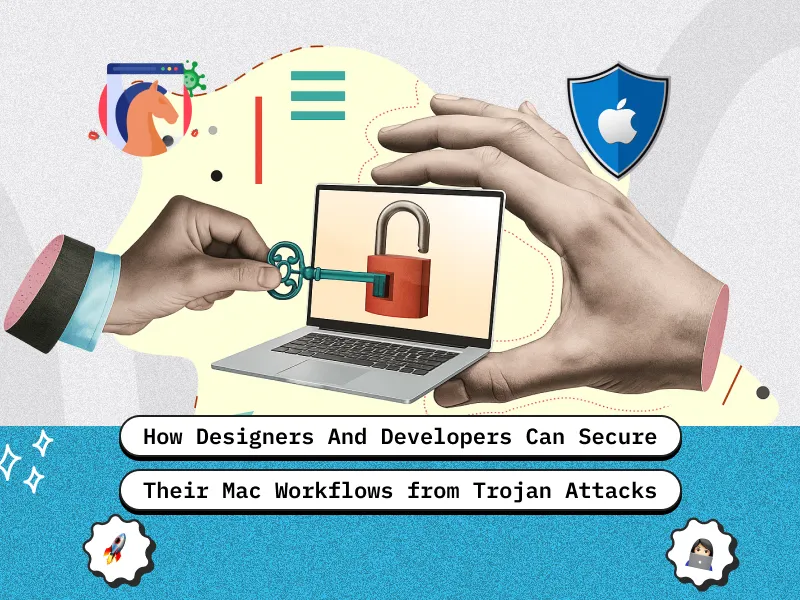
TL;DR
- Compromised installers and plugins often act as Trojan entry points on macOS.
- Quickly isolate the device, scan for malware, and remove infected files.
- Manually delete suspicious apps, extensions, and reset login credentials.
- Prevent infections through vetted assets, code signing, and regular scans.
- Harden macOS by isolating risky tools, securing secrets, and monitoring activity.
Introduction
Trojans for macOS don’t break in loudly; they slip through unnoticed. It only takes one wrong click, a rigged installer, a poisoned dependency, or an unvetted design asset for your Mac to start leaking code, credentials, or client files. For developers and designers, the risk goes beyond a single device; it can impact entire project repositories and client trust.
If you work with a Mobile App Development Company, your Mac isn’t just a personal workstation; it’s a gateway to source code, design prototypes, and production assets. A single Trojan infection can disrupt active builds, expose client data, or compromise internal pipelines.
In this guide, you’ll learn how to detect, remove, and prevent Trojan infections effectively with steps tailored to real-world workflows involving package managers, third-party plugins, font packs, and design pipelines. Keep your creative and development environments clean; one unchecked tool should never put your entire project at risk.
Introducing a Reliable Removal Resource for Mac Users
When a Trojan infects a Mac system, it’s crucial to follow Mac-specific security steps as accurately as possible. A reliable process typically includes isolating the infected machine, running a deep malware scan, reviewing suspicious files placed in quarantine, and following a structured method to remove a trojan along with the original malicious application. These Mac security practices also guide developers and designers to audit browser extensions, monitor unusual spikes in system activity, and reset weak or compromised passwords, especially important for teams working with external libraries, design files, and prototype assets every day.
The resource also encourages the practice of regularly inspecting newly installed systems, reviewing privacy settings, and verifying that system protections are still active. By consistently carrying out scans alongside these checks, you can fortify the entire environment and safeguard both personal devices and professional deliverables.
Why App Developers and Designers Must Read This Article
So, as a designer or developer, why do you need to read this article to learn how to remove Trojan viruses? The two main reasons are discussed below.
Understanding Mac Trojans
macOS has integrated protection that is constantly updated with improvements in threat handling. However, the most trusted apps, libraries, and project resources used by macOS users become the primary targets for Trojan viruses. They come primarily in download packages, cracked tools, code snippets, or browser extensions, and most of them only become active after installation.
How Design and Dev Workflows Increase Exposure
Today’s workflows require fast iteration and collaboration. Creatives obtain fonts, templates, and plug-ins from somewhere. Developers use packages, scripts, or external repositories to manage their projects. That constant stream increases the potential exposure when assets are not checked, especially during rapid prototyping or on a tight deadline. Shared remote archives of prototypes or test builds can be assumed to carry malware.
A Step-by-Step Guide to Removing a Trojan on macOS
If you want to know how to get rid of a Trojan virus, this section is for you. While we don’t go into highly detailed steps, these guidelines will always be your reference for removing such a malicious infection.
Initial Detection & Isolation
If you suspect a Trojan infection, act quickly. Unplug the device from Wi-Fi to prevent data leakage, and then go into the Activity Monitor to check if any unusual processes are consuming excessive CPU resources.
Be cautious of any newly installed applications or browser extensions, especially regarding sudden pop-ups, redirections, or unexpected permission changes. Only then will you be asked to take action on your own.
Isolation stops a Trojan from stealing credentials and corrupting assets or from spreading across shared networks.
Deep-Cleaning Using a Solution
Run a full system scan using a macOS-specific antimalware tool. In a deeper examination, it will be able to flag hidden components, quarantine them, and ensure related files are out of the way. Sometimes Trojans sit in folders cabled to design or development tools. Therefore, scanning mail attachments, cache locations, and system directories is essential.
Manual Cleanup and Confirmation
Delete the suspicious app and any of its residues. Precise browser data and create new passwords for apps related to the workflow, such as source control and cloud storage. Double-check System Preferences, paying special attention to Privacy & Security, the firewall, and login items.
Preventive Best Practices for Developers & Designers
So, how can you prevent a Trojan virus on a Mac? Below are the key things to follow.
Secure Build and Delivery Pipeline
Enforced code signing and notarization for internal tools and test builds never hurt a production machine that did not have Gatekeeper bypassed.
Automate CI to run static checks and malware scans before packaging artifacts. Kept macOS, Xcode CLTs, and XProtect current; updates close execution paths and controls the damage.
Vet Assets, Libraries, and Tools
Assume everything external to be untrusted until it can be proven otherwise. Obtain fonts, plugins, packages, or bundles from the official repositories maintained by their creators. Scan downloaded archives before extracting or opening. Use both sandboxed and notarized applications, plus leave the defaults on for macOS protection.
Ongoing Monitoring
Run an antimalware scan once a week. Check for login items and browser extensions. Log unusual CPU spikes or new daemons, and keep a simple system: isolate, scan, quarantine, reset credentials, and re-image if persistence is detected. Align it with the baseline hygiene from CISA to reinforce detection and recovery.
Read More: Top 7 Best Practices to Secure Your Web Application
How to Harden macOS for Dev/Design Workflows
Hardening your Mac does not have to mean making it challenging to work with. It’s about lowering the chances of compromise and the damage if malware does make its way through in the first place.
1) Lock down the OS
- Keep macOS and Xcode CLTs up to date.
- Enable FileVault and Firewall.
- Use a standard (non-admin) account for your day-to-day work.
- Touch ID is a good idea.
2) Only run what can be trusted
- Keep Gatekeeper enabled; only notarized or App Store apps.
- Periodically go through browser extensions.
- Audit persistence points: Login Items, LaunchAgents/Daemons, and cron jobs.
3) Isolate risky tools & assets
- Unknown CLIs or plug-ins should be tested in VMs/containers.
- New fonts, plug-ins, and templates should first be scanned.
- Design plug-ins must only be used from reputable vendors.
4) Practice package-manager hygiene
- Dependencies should be pinned with lockfiles.
- Regular audits (e.g., npm audit, pip-audit).
- Keep Homebrew updated and remove unused packages.
- Sign internal tools and releases.
5) Secure secrets & access
- Personal and client project data must be separated.
- Store secrets in Keychain or a password manager, not repos.
- Use SSH keys with passphrases and rotate credentials regularly.
A slight hardening immediately reduces the chances of a Trojan compromising code, artwork, or client data, all without slowing your creative workflow.
Read More: Web Application Security Checklist
Conclusion
For Mac-based developers and designers, Trojan threats are more than just technical issues; they directly impact productivity, client trust, and creative integrity. Detecting them early, using trusted Mac security tools, and following preventive measures ensures your workflow stays clean and reliable.
In a Mobile App Development Company, where multiple projects, assets, and client repositories are handled daily, even a small breach can lead to major setbacks. Building security awareness into every stage of development helps protect not just your codebase but also your reputation.
When security becomes part of the creative process, from verifying assets to keeping systems updated, your Mac remains a dependable workspace. A secure Mac environment empowers developers and designers to focus on what matters most: building great products with confidence.
FAQs
1. How to remove a Trojan virus from a Mac?
Disconnect from the internet, open Activity Monitor to spot suspicious processes, and run a full scan with a trusted macOS antivirus. Then delete infected files, browser extensions, and reset all passwords.
2. How to secure a Mac from hackers?
Keep macOS and apps updated, enable FileVault and Firewall, use strong passwords or Touch ID, and avoid downloading unverified software or plugins. Regular scans and encrypted backups add extra safety.
3. What are common sources of Trojan infections for Mac users?
Trojan infections often come from cracked software, fake app installers, malicious email attachments, and unverified plugins or design assets downloaded from untrusted sources.
4. What’s the best way to secure a Mac workflow for developers and designers?
Use notarized tools, enforce code signing, scan new assets, and isolate risky plugins in VMs or sandboxes. Store credentials securely and keep system protections like Gatekeeper always enabled.







 30 mins free Consulting
 12 min read


 Singapore
 USA
USA 
 Finland





 Love we get from the world