

 Lets Talk
TL;DR
- ChatGPT agent mode lets ChatGPT research, browse websites, work with files, run supported code, edit spreadsheets, and complete multi-step online tasks.
- Open it from the Tools menu or type /agent in the message composer.
- Agent mode is currently available on paid ChatGPT plans, not the free plan.
- Give it a specific objective, clear constraints, approved sources, and a definition of completion.
- Review high-impact actions, limit connected apps, and use browser takeover for passwords or private information.
- Agent mode is useful for research, reporting, scheduling, spreadsheet work, and repetitive online workflows, but it can still make mistakes.
Introduction
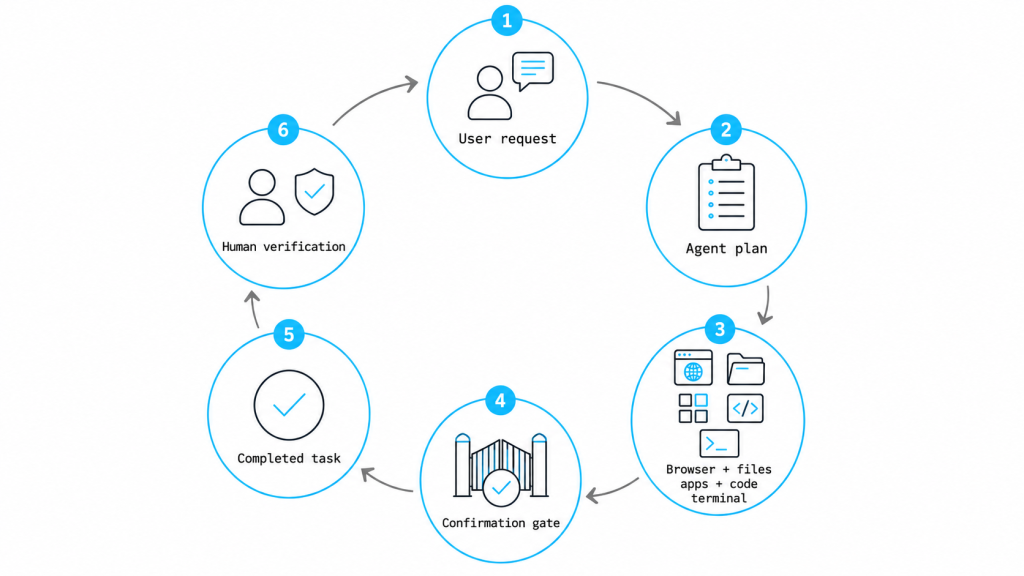
ChatGPT agent mode is a task-execution feature that combines reasoning with tools for browsing, analysis, files, apps, a terminal, and supported website actions. Instead of only explaining how to perform a task, it can work through the steps on your behalf. You remain involved because the agent may request clarification, confirmation, or browser takeover before sensitive actions.
What Is Agent Mode in ChatGPT?
ChatGPT agent mode allows ChatGPT to move between reasoning and action while completing a multi-step task. It can navigate websites through a visual browser, analyze information with code, work with uploaded files, access enabled apps, fill out forms, and edit spreadsheets. OpenAI describes it as a way to complete complex online tasks while keeping the user in control.
The feature combines capabilities associated with browsing, deep research, and the former operator experience. Operator functionality is now integrated into ChatGPT agent mode, and the standalone Operator website is no longer available.
Agent mode differs from a custom agent built for a company’s systems. Custom solutions may use dedicated permissions, rules, integrations, testing, and monitoring. Creole Studios’ guide on what an AI agent is explains the concept, while its AI agent development services page covers production implementation.
How Do You Get Agent Mode in ChatGPT?
To access agent mode:
- Sign in to ChatGPT.
- Open a new or existing conversation.
- Select Tools in the message composer.
- Choose Agent mode.
- Alternatively, type /agent in the composer.
- Describe the outcome you want and submit the task.
Agent mode is currently available on Plus, Pro, Business, Enterprise, and Edu plans, but not the Free plan. OpenAI lists plan-specific monthly limits, so verify the current documentation before publishing usage details.
Agent mode works on ChatGPT web, iOS, Android, macOS, and Windows.
How Do You Use ChatGPT Agent Mode?
1. Define a Specific Outcome
Avoid prompts such as the following:
Research our market and do everything needed.
Use a scoped request:
Compare five project-management tools for a 30-person software team. Use official pricing and security pages, create a comparison table, cite every source, and recommend two options. Do not start trials or submit forms.
A useful prompt specifies the objective, sources, constraints, output format, and prohibited actions.
2. Provide Relevant Context
Upload the documents, spreadsheets, screenshots, or templates needed for the task. Enable only necessary apps.
For example:
Review the attached feedback spreadsheet. Categorize issues, calculate frequency, identify the top three causes, and produce a summary. Do not modify the original file.
OpenAI notes that agent tasks often take five to thirty minutes, depending on complexity.
3. Set Action Boundaries
Tell the agent what it may and may not do.
Useful boundaries include:
- Do not send emails without approval.
- Do not purchase anything.
- Do not modify account settings.
- Use only official or approved sources.
- Ask before submitting a form.
- Stop if the total cost exceeds a specified amount.
- Keep all changes in a new file.
4. Monitor and Intervene
Agent mode shows progress while it works. You can interrupt, clarify instructions, pause the task, request a status summary, take over the browser, or stop the run. OpenAI states that the agent may also ask questions or request confirmation when needed.
5. Review the Result
Check source quality, calculations, file changes, dates, assumptions, and any actions completed. For consequential work, compare the result with the original system of record.
Practical experience block: Agent workflows perform better when the prompt includes a clear finish line. “Research competitors” is open-ended. “Compare pricing, integrations, security documentation, and customer type for five named competitors, then create a cited table” gives the agent a testable outcome.
What Are Useful ChatGPT Agent Mode Examples?
| Task | Example instruction | Important control |
| Competitor research | Compare named competitors and create a cited report. | Restrict sources and date range. |
| Meeting preparation | Summarize recent emails, files, and calendar context. | Enable only required apps. |
| Spreadsheet analysis | Clean data, calculate metrics, and preserve formatting. | Work on a copy |
| Travel planning | Compare routes, hotels, and policies. | Do not book without confirmation |
| Expense workflow | Organize receipts and prepare a submission. | Review amounts and categories. |
| Recurring report | Generate the same metrics summary weekly. | Review schedule and data access. |
After an agent task finishes, users can schedule it to repeat daily, weekly, or monthly and manage recurring runs from ChatGPT schedules. Each scheduled invocation counts toward the applicable agent usage limit.
The real-world AI agent case studies article shows how tool-using agents support broader operational workflows.
How Is Agent Mode Different From Standard ChatGPT?
| Capability | Standard ChatGPT conversation | ChatGPT agent mode |
| Main function | Answer, explain, draft, and analyze | Execute multi-step tasks |
| Website interaction | May search or summarize sources | Can navigate and interact with supported sites |
| Tool selection | Usually user-directed | Can select tools during the workflow |
| File work | Analyze or create files | Can combine files, browsing, code, and actions |
| User involvement | Reviews responses | Supervises actions and confirmations |
| Typical duration | Usually short | Often, several minutes for complex tasks |
Use standard ChatGPT for explanations, drafts, or quick analysis. Use agent mode for coordinated steps, website interaction, or repeatable workflows.
Is ChatGPT Agent Mode Safe?
ChatGPT agent mode includes safeguards, but it is not risk-free. OpenAI identifies prompt injection as a key concern because malicious instructions hidden on a webpage could attempt to influence the agent. Safeguards include confirmation for high-impact actions, monitoring for prompt injection, refusal behavior, and watch mode for certain sensitive sites. OpenAI also states that these controls do not remove every risk.
Use these precautions:
- Enable only the apps required for the current task.
- Avoid vague instructions such as “handle everything in my email.”
- Do not place passwords or private credentials directly in a prompt.
- Use browser takeover when entering sensitive information.
- Stop the task if the agent behaves unexpectedly.
- Clear remote-browser data after sensitive sessions.
- Review connected-app permissions regularly.
When browser takeover is active, OpenAI says screenshots are not captured while the user enters sensitive information. Outside takeover, agent browsing history and screenshots remain associated with the conversation until the chat is deleted.
Business, enterprise, and education data are not used for model training by default. Plus and Pro users can manage model-improvement preferences through Data Controls.
What Are the Main Limitations?
Agent mode can misunderstand instructions, choose a weak source, miscalculate, fail on a website, or produce an incomplete file. Some websites may also be inaccessible because of safety, compliance, or technical restrictions.
Do not rely on it without review for:
- Legal, medical, or financial decisions
- Irreversible purchases or account changes
- High-risk communications
- Production deployments
- Unverified business records
- Tasks involving unrestricted confidential data
Domain-specific workflows may require a custom agent with stronger controls, integrations, evaluation, and monitoring.
A Better Way to Start
Begin with a low-risk task that has a clear input and verifiable result. Good first tasks include organizing research, analyzing a copy of a spreadsheet, preparing a meeting brief, or comparing products without purchasing.
Once the workflow is reliable, add connected apps or recurring schedules carefully. ChatGPT agent mode is most useful when it reduces manual steps while the user still controls permissions, approvals, and the final decision.
Frequently Asked Questions
What is agent mode in ChatGPT?
Agent mode is a ChatGPT feature that can reason through a task and use tools such as a browser, files, apps, code interpreter, and terminal to complete supported multi-step work.
How do I get agent mode in ChatGPT?
Open the Tools menu and choose Agent mode, or type /agent in the composer. It is currently available on eligible paid plans and not on the free plan.
How do I use ChatGPT agent mode?
Give it a specific objective, provide necessary context, define what it may and may not do, monitor its actions, and verify the final output.
Is ChatGPT agent mode safe?
It includes confirmations, monitoring, watch mode, and other safeguards, but risks remain. Limit app access, use takeover for sensitive inputs, avoid vague instructions, and review consequential actions.
Can ChatGPT agent mode browse websites?
Yes. It can use a virtual browser to navigate and interact with supported websites. Some sites or actions may be restricted.
Can the ChatGPT agent mode schedule recurring tasks?
Yes. After a task completes, it can be scheduled to repeat daily, weekly, or monthly. Scheduled runs count toward applicable usage limits.
Is ChatGPT agent mode available for free?
No. OpenAI’s current documentation states that agent mode is available on eligible paid plans, not the Free plan.










 30 mins free Consulting
 12 min read

 United States






 Love we get from the world