
 Lets Talk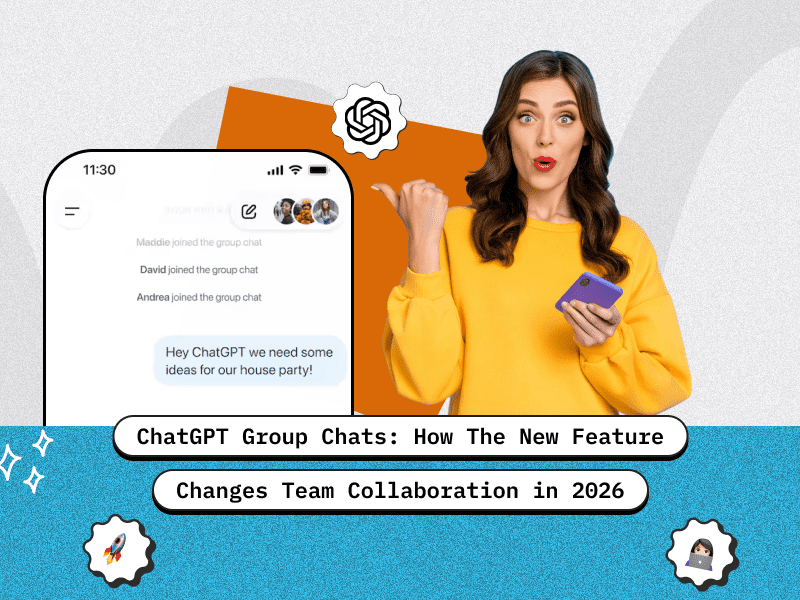
TL;DR
- ChatGPT Group Chats let multiple people collaborate with AI in the same conversation thread.
- Teams can brainstorm, assign tasks, analyze documents, and co-create content together—live.
- New controls allow admins to manage permissions, conversation visibility, and AI behavior.
- Significant workflow impacts include fewer meetings, faster ideation, and improved cross-functional collaboration.
- This feature will evolve into a more autonomous multi-agent workspace in the near future.
Introduction
Team collaboration has changed significantly with the rise of AI copilots—but in 2026, OpenAI’s ChatGPT Group Chats take the next leap. Instead of each team member having isolated conversations with AI, this feature allows shared, multi-participant chats where people and ChatGPT work together in real time. Whether you’re conducting brainstorming sessions, reviewing documents, building technical workflows, or guiding onboarding, Group Chats turn ChatGPT into an active team participant rather than an individual assistant.
If you are looking for an OpenAI development company to turn this feature into something practical for your business, Creole Studios can help you design, build, and integrate custom Group Chat workflows into your existing tools and products. From secure setup and user permissions to AI prompt design and automation, you can treat ChatGPT as a reliable teammate inside your collaboration stack instead of just another standalone chat window.
This article explores how the feature works, why it matters, and how it’s reshaping workplace collaboration.
What Is “Group Chats” in ChatGPT?
ChatGPT Group Chats are a collaborative feature that allows multiple users to interact together within a single ChatGPT session. Unlike traditional one-on-one conversations with the AI, Group Chats enable teams, friends, or communities to communicate, brainstorm, and solve problems collectively while leveraging ChatGPT’s intelligence.
This feature is designed to make ChatGPT a shared workspace where users can:
- Collaborate on ideas in real-time.
- Assign roles or set permissions for participants.
- Benefit from ChatGPT’s suggestions, insights, and responses tailored to group interactions.
- Maintain organized discussions through threaded messages or conversation history.
Each group chat can include up to 20 participants, making it ideal for small to medium-sized teams, study groups, or collaborative projects. ChatGPT itself is not counted as a participant in this limit.
In essence, Group Chats transform ChatGPT from a personal assistant into a collaborative partner, making it perfect for team projects, learning environments, or any scenario where multiple perspectives enhance problem-solving and creativity.
What ChatGPT Group Chats Offer — Feature Breakdown
When you integrate ChatGPT into a group chat environment — whether it’s in a Slack channel, Microsoft Teams group, Discord server, or a custom chat room — it unlocks a variety of powerful features.
Here’s a breakdown of what such group-chat setups typically offer:
Core Capabilities
- Shared workspace where everyone sees live AI outputs
- Multi-file, multi-format support for documents, PDFs, spreadsheets, and code
- Real-time brainstorming and decision-making
- Persistent conversation history accessible to all participants
- Task planning, summarization, and follow-up generation
Assistant Behavior
ChatGPT adapts its responses to group context:
- Recognizes multiple voices and addresses participants by name
- Maintains conversation memory within the group chat’s scope
- Can mediate discussions or act as a facilitator
- Generates shared outputs such as agendas, documents, or action items
- Can produce personalized responses tailored to each team member’s role
Controls & Settings
Depending on the plan, users can:
- Add/remove participants
- Set AI access permissions
- Lock or archive chats
- Restrict file uploads
- Enable/disable memory in group contexts
- Assign admin/control roles
Enterprise users gain deeper compliance and governance settings.
How to Start a Group Chat (Step-by-Step)
Starting a Group Chat in ChatGPT is designed to be fast, intuitive, and seamless—even for first-time users. Whether you’re bringing together your team, collaborating with clients, or brainstorming with friends, the setup process takes just a few taps.
Here’s how it works, step-by-step:
1. Tap the People Icon
Open ChatGPT and locate the “Group” or “People” icon in the sidebar or chat creation menu.
2. Invite Others
Add participants by:
- Organization directory (Team & Enterprise plans)
- Shareable invite link (Plus/Team plans)
3. Start Chatting
Begin the conversation with a prompt, topic, or uploaded document.
Everyone sees the chat in real time—including ChatGPT’s responses.
4. Manage the Conversation
Admins can:
- Remove users
- Pin messages
- Control AI memory
- Restrict uploads
- Assign roles
- Rename or archive the chat
5. Find It in a Dedicated Section
All group chats appear in a “Group Chats” tab for easy tracking and management.
How ChatGPT Group Chats Transform Team Workflows
ChatGPT Group Chats fundamentally change team workflows by transforming the AI from a private, single-user tool into a shared, collaborative team member. This shift moves AI interaction directly into the core of team communication, leading to significant improvements in efficiency, context, and shared output.
Here’s a breakdown of the key ways this new feature transforms team workflows:
1. Shared Context and Alignment
The biggest transformation is the creation of shared, persistent context.
- Single Source of Truth: Instead of team members each having separate, isolated conversations with ChatGPT and manually sharing the results, all prompts, AI answers, file uploads, and team discussions live in one searchable thread. This eliminates the question of “who has the latest version?” or “what did the AI say about this?”
- Faster Onboarding: New team members or stakeholders can quickly scroll through the group’s history—including the AI’s inputs—to understand project background, past decisions, and rationale without constant re-explanation.
- Continuous Learning: The AI’s memory and understanding of the project stay intact because the conversation is continuous, allowing follow-up questions to happen in context, even days later.
2. Accelerated Execution and Output
Group chats enable teams to move from discussion to a tangible draft or output much faster.
- Real-Time Co-Creation: The team can work on a task with the AI simultaneously. For example:
- A PM uploads a project brief (PDF).
- The team asks the AI to summarize the brief for key takeaways.
- A marketer then asks the AI to draft three slogan options based on the summary.
- The designer instantly provides feedback on the drafts, and the team agrees on the next step in the same thread.
- Drafting and Refinement: Instead of ending a meeting with a to-do list for follow-up drafting, the AI can be used in real-time to generate a meeting summary, an outline for a proposal, or initial code—which the team then refines together, reducing revision cycles.
3. Enhanced Brainstorming and Creative Work
The AI acts as an objective, instant-feedback collaborator during ideation sessions.
- Instant Iteration: Teams can drop brand guideline PDFs or initial concepts into the chat and ask the AI for on-brand slogan ideas or design directions. Outputs (including image generation) are instantly visible to everyone for immediate discussion.
- Role-Playing and Simulation: For sales or customer service teams, the group can ask the AI to role-play a customer persona, allowing the team to pressure-test scripts or response flows collaboratively.
- Conflict Resolution: The AI can be asked to objectively compare different options, explore trade-offs, or summarize conflicting feedback into actionable themes, helping the group reach consensus faster.
4. Seamless File and Media Integration
The ability to upload and share files directly into the group chat streamlines reference and work.
- Shared Reference Materials: Teams can upload documents, presentations, or data directly into the chat, allowing the AI to reference these materials when generating output for the entire group, ensuring consistency.
- Media Collaboration: Concept images or media outputs generated by the AI are instantly visible to everyone, allowing the team to quickly agree on which assets to move forward with.
Best Practices for Using Group Chats Effectively
Using ChatGPT Group Chats the right way can significantly improve team communication, accelerate decision-making, and keep everyone aligned. Here are the best practices to help teams get maximum value from this new feature:
- Set expectations: Define who is responsible for what within the chat.
- Use prompts strategically: Begin chats with context-setting instructions for ChatGPT.
- Pin important messages for shared visibility.
- Use AI as a facilitator, not a replacement for human decisions.
- Archive completed threads to maintain a clean workspace.
- Assign roles (admins, participants) in larger teams.
- Use summaries to keep everyone aligned.
Privacy, Safety, and Governance in ChatGPT Group Chats
Here’s how OpenAI ensures a secure and responsible experience:
Data Management
- Enterprise data is stored according to admin policies
- Chat exports can be restricted
- AI memory can be disabled for sensitive threads
- Granular controls for data retention and permissions
Moderation & Compliance
- Built-in content filters
- Policy enforcement for shared content
- Audit logs for Enterprise and Team plans
- Compliance standards like SOC 2, GDPR, and ISO 27001
Organizations can tailor access rules to ensure secure collaboration.
Plan Comparison for Group Chats
ChatGPT does not feature a dedicated “Group Chat” subscription. Instead, capabilities for group collaboration are incorporated into its paid offerings. The primary pricing tiers are:
| Plan | Cost | Best For | Group Chat Features |
| Free | $0/month | Casual users, limited to basic GPT-3.5 access. | No group chat function is available. |
| Plus | $20/user/month | Individuals and freelancers need more features. | Provides access to GPT-4, quicker responses, and preferential access. While not specifically for groups, it can be utilized for personal tasks. |
| Team | $25-$30/user/month | Small to medium-sized businesses. | Features built in for team collaboration, making it the optimal choice for group communication. |
| Pro | $200/user/month | Developers and power users need the highest limits and features. | Offers sophisticated functionalities and elevated limits, appropriate for complex group initiatives. |
Important considerations:
- Group Chat Functionality: The capability to use group chats is integrated into the paid subscriptions. This feature is driven by GPT-5.1 Auto, an underlying system that intelligently chooses the most suitable AI model to address the specific task at hand.
- Usage Constraints (Rate Limits): Any limitations on the rate of messages apply exclusively to the number of responses generated by ChatGPT, and not to the interactions or messages exchanged between the human users within the group.
- Choosing the Right Plan: Selecting the ideal plan for a group depends on the required feature set. For organizations primarily focused on team collaboration, the Team plan is generally the best fit. However, if the use is primarily individual, with only occasional requirements for group tasks, the Plus plan might meet those needs.
Future Outlook: What’s Coming Next
ChatGPT’s new Group Chats feature marks the beginning of a more collaborative and shared digital space. As the experience evolves, ChatGPT will become an even smarter partner in team and personal conversations helping you brainstorm ideas, make informed decisions, stay organized, and express your creativity with the people who matter most. It will also support shared tasks like planning events, solving problems together, and keeping discussions on track.
As we pilot this feature, we’re closely observing how people use ChatGPT collectively, gathering insights on real-world collaboration needs. This feedback will guide continuous improvements to make group interactions smoother, more intuitive, and more helpful for everyone involved.
Conclusion
ChatGPT Group Chats are set to redefine team collaboration in 2026, offering businesses a smarter way to communicate, brainstorm, and execute projects. With shared access to AI intelligence, teams will be able to generate ideas, automate routine tasks, and make faster decisions—reducing unnecessary meetings, accelerating workflows, and enabling seamless cross-functional collaboration. As OpenAI continues to enhance this feature, Group Chats are poised to become a staple in modern digital workplaces, much like Slack or Google Docs, but powered by AI that delivers insights and actionable recommendations. To stay ahead and harness this innovation, hire ChatGPT developers to integrate and customize Group Chat solutions for your organization.
FAQs
1. Can you collaborate on a ChatGPT chat?
Yes. Group Chats allow multiple people to work with ChatGPT simultaneously in the same conversation.
2. Are ChatGPT chats really private?
Privacy depends on your plan. Enterprise-level chats offer the highest security and compliance standards with admin-controlled retention policies.
3. Can you share ChatGPT chats with others?
Yes. You can invite participants directly or share an invite link, depending on your plan.
4. Can ChatGPT differentiate between multiple speakers?
Yes. ChatGPT identifies participants by name and can tailor responses accordingly.
5. Can you upload files in a Group Chat?
Absolutely. PDFs, documents, images, spreadsheets, code files, and more can be shared and analyzed by the group.
6. Is there a limit to how many people can join?
Limits vary by plan—Enterprise supports the largest group capacities.
7. Can AI memory be disabled in group conversations?
Yes. You can turn memory off for sensitive or compliance-bound discussions.


 11 min read


